Troubleshooting: Course Expired
Learn to resolve errors when a course has expired in the Preparation & Response Training system.
- Emergency Management
- PBIS Rewards
- Hall Pass
- Preparation & Response Training
- Behavioral Case Manager
- Visitor Management
-
Compass Curriculum
Training Workshops Getting Started On-Demand Release Notes & Updates Data & User Management Compass Curriculum for Students, Staff, & Families Compass Behavior Intervention Compass Mental Health + Prevention Compass for Florida - Character Ed, Resiliency, & Prevention Compass for Texas - Character Ed Analytics & Reporting Additional Resources
- School Check In
- ALICE Training Institute
- Digital Threat Detection
- Anonymous Tip Reporting
- Resources
- Back-to-School
Navigate360 Preparation & Response Training provides eLearning Managers with the ability to enable a deadline for completion. This date shows under End of Validity on the enrollment page. If it is not visible, click Columns and adjust the checked boxes to modify the displayed information.
Once this deadline passes, users are unable to launch, view, or complete the training.
To remove the date and allow users to continue, the eLearning Manager can clear the End of Validity date with the process below.
- From the admin menu, go to Course Management
- Locate the course and click on the title
- Go to the Enrollments tab
- Check the box next to user(s)

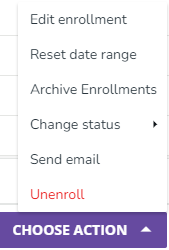
- Go to Choose Actions menu in lower, right corner
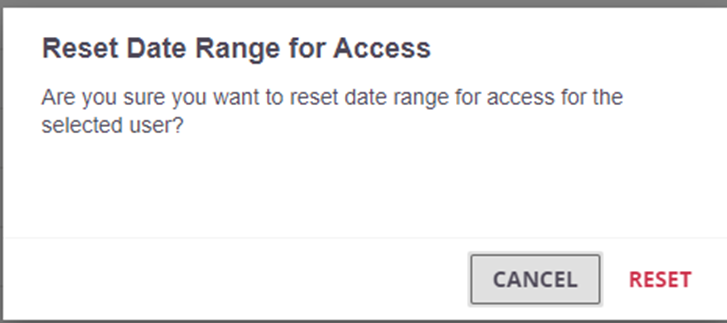
- Click Reset Date Range to clear dates
- Click Reset on the confirmation dialogue