Contact Us


Need Help?

System Status | All Products | Training Webinars | Order Supplies | Contact Us
  • All Products
  • PBIS Rewards
  • PBIS Rewards Specific Resources 

How do I print the student entries for a completed raffle?

After a raffle has been run, you can use the rerun feature to print a list of the students entered.

Contact Us


Need Help?

  • Emergency Management
    Getting Started Site Setup EMS Webinar Links User Management Features & Functions Analytics & Reporting Troubleshooting Click here for Connect360 & EM Resources (911Cellular) EMS Resources On-Demand Learning
  • Connect360
    Emergency Management & Connect360 Integration E911 & Emergency Calls Connect360 Computer Panic Buttons Notify360: Panic Button Hardware Screen Takeover Notification CampusShield Mobile App Connect360 Enablement Resources
  • PBIS Rewards
    Launching PBISR Webinar Links User Management  PBIS Rewards Feature/Function Overview  Analytics & Reporting   Troubleshooting   Hardware / Consumables On-Demand Learning Integrations   Release Notes & Updates  PBIS Rewards Specific Resources 
  • Hall Pass
  • Preparation & Response Training
    Getting Started NTI Webinar Links User Management Course Management Analytics & Reporting   Troubleshooting PRT Resources  Release Notes & Updates
  • Behavioral Case Manager
    Getting Started Webinar Links User Management  Feature/Function Overview  Analytics & Reporting   Troubleshooting   Release Notes & Updates  Resources / User Guides State Specific Guidance
  • Visitor Management
    Release Notes Blog Posts Getting Started Webinar Links User Management  Feature/Function Overview Analytics & Reporting   Troubleshooting   Hardware / Consumables Resources  Integrations
  • Compass
    Getting Started Webinar Links Data & User Management  Compass Curriculum for Students, Staff, & Families Compass Behavior Intervention Compass Mental Health + Prevention Compass for Florida - Character Ed, Resiliency, & Prevention Compass for Texas - Character Ed Analytics & Reporting   Release Notes & Updates  Additional Resources
  • School Check In
    Getting Started  SCI Webinar Links User Management  SCI Feature/Function Overview  Analytics & Reporting   Troubleshooting   Hardware / Consumables SCI Resources 
  • ALICE Training Institute
    User Management  ALICE Feature/Function Overview  ALICE Resources  Troubleshooting  
  • Detect
    Getting Started Detect Webinar Links Integrations   Detect Resources  Troubleshooting Release Notes & Updates 
  • Anonymous Tip Reporting
    Getting Started  P3 Webinar Links User Management  P3 Feature/Function Overview  Analytics & Reporting   Integrations   Release Notes & Updates  P3 Resources 
  • Resources
    Notices Downloads SIS Integration Billing
  • Back-to-School
    Character & Culture Detection & Prevention Preparation & Response
+ More


After a raffle has been run, you can use the rerun feature to print a list of the students entered. You can also use the rerun feature to select new winners, if needed.

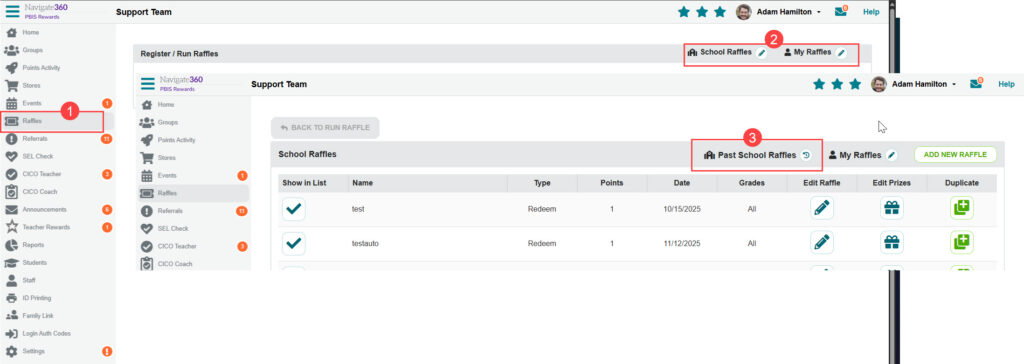
  1. Select “Raffles” from the left-side menu
  2. Select the type of raffle you ran.
  3. Choose “Past Raffles”


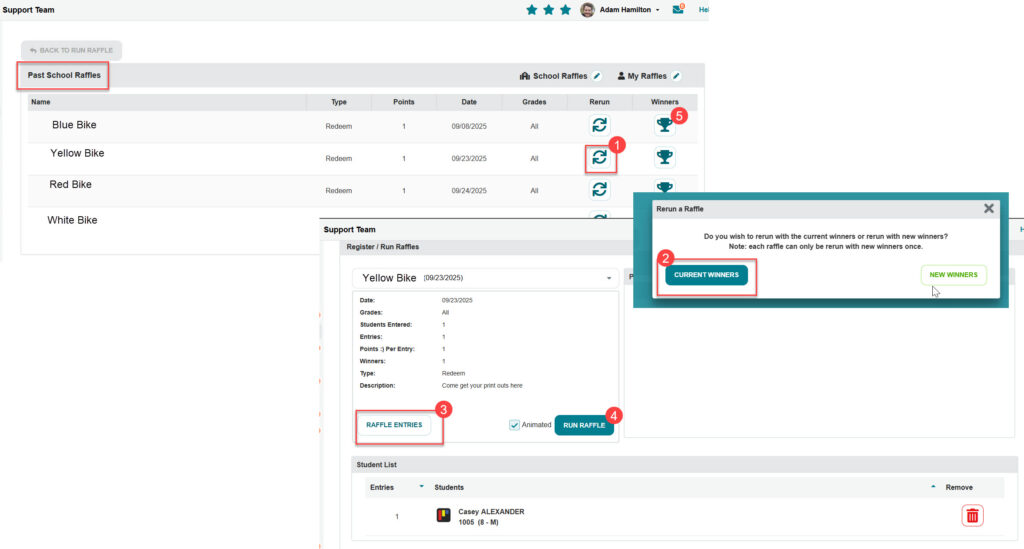
On the “Past Raffles” screen:

  1. Use the “Rerun” icon for the desired raffle.
  2. Select “Current Winners” if you do not need to select new winners. If new winners are required, use the “New Winners” button instead.
  3. Once the Raffle loads, use the “Raffle Entries” button to download a spreadsheet of the entered students.
  4. Use the “Run Raffle” button if you want to actually rerun the raffle. If you selected “Current Winners” the winners of the previously run raffle will be displayed. If you selected “New Winners,” new winners will actually be selected.
  5. Raffle winners are listed in the “Past Raffle” screen at the trophy icon.

raffle print entries

Related Articles

  • Raffle- PBIS Rewards
  • Reports: Admin- PBIS Rewards
  • All Products | Training Webinars | Order Supplies | Contact Us
  • ©2024 Navigate360

Definition by Author

0
0
Expand