Contact Us


Need Help?

System Status | All Products | Training Webinars | Order Supplies | Contact Us
  • All Products
  • Compass
  • Compass Curriculum for Students, Staff, & Families

Using the Student Program as a Teacher

Contact Us


Need Help?

  • Emergency Management
    Getting Started Site Setup EMS Webinar Links User Management Features & Functions Analytics & Reporting Troubleshooting Click here for Connect360 & EM Resources (911Cellular) EMS Resources On-Demand Learning
  • Connect360
    Emergency Management & Connect360 Integration E911 & Emergency Calls Connect360 Computer Panic Buttons Notify360: Panic Button Hardware Screen Takeover Notification CampusShield Mobile App Connect360 Enablement Resources
  • PBIS Rewards
    Launching PBISR Webinar Links User Management  PBIS Rewards Feature/Function Overview  Analytics & Reporting   Troubleshooting   Hardware / Consumables On-Demand Learning Integrations   Release Notes & Updates  PBIS Rewards Specific Resources 
  • Hall Pass
  • Preparation & Response Training
    Getting Started NTI Webinar Links User Management Course Management Analytics & Reporting   Troubleshooting PRT Resources  Release Notes & Updates
  • Behavioral Case Manager
    Getting Started Webinar Links User Management  Feature/Function Overview  Analytics & Reporting   Troubleshooting   Release Notes & Updates  Resources / User Guides State Specific Guidance
  • Visitor Management
    Release Notes Blog Posts Getting Started Webinar Links User Management  Feature/Function Overview Analytics & Reporting   Troubleshooting   Hardware / Consumables Resources  Integrations
  • Compass
    Getting Started Webinar Links Data & User Management  Compass Curriculum for Students, Staff, & Families Compass Behavior Intervention Compass Mental Health + Prevention Compass for Florida - Character Ed, Resiliency, & Prevention Compass for Texas - Character Ed Analytics & Reporting   Release Notes & Updates  Additional Resources
  • School Check In
    Getting Started  SCI Webinar Links User Management  SCI Feature/Function Overview  Analytics & Reporting   Troubleshooting   Hardware / Consumables SCI Resources 
  • ALICE Training Institute
    User Management  ALICE Feature/Function Overview  ALICE Resources  Troubleshooting  
  • Detect
    Getting Started Detect Webinar Links Integrations   Detect Resources  Troubleshooting Release Notes & Updates 
  • Anonymous Tip Reporting
    Getting Started  P3 Webinar Links User Management  P3 Feature/Function Overview  Analytics & Reporting   Integrations   Release Notes & Updates  P3 Resources 
  • Resources
    Notices Downloads SIS Integration Billing
  • Back-to-School
    Character & Culture Detection & Prevention Preparation & Response
+ More


The most effective Compass Curriculum Student program implementations involve classroom teachers as program users.  This article will examine the suggested approach that classroom teachers can take in implementing the Compass Curriculum Student
.

✅Checking Your Class Roster(s)

 
To engage with students in the program, you must ensure that your class roster(s) include your students.  You can view your class roster by logging into the program and clicking on the "Classes" menu item, located under "Users."


When you click the "Classes" button, you'll see any class that you're assigned to that has also been shared with/imported to Compass Curriculum.

 
From there, you can click on the blue number of students under the Action column or on the blue "Manage Students" button on the right-hand side. This will show you your list of students for that particular class.  
 
If students/classes were manually imported/created, you can move students to other classes, create additional courses, and add pre-created assignments to your class.  Each button or icon provides functionality. Hover over a button or icon to see what it does.


Note: You can only view and assign students who have been assigned to you by your program administrator.  If you see no classes or students, contact your program administrator for help.


Using Clever or ClassLink?

If your school/district is using a SIS integration tool like Clever or ClassLink, you will NOT be able to edit your rosters in Compass.  Instead, roster changes mush be made in your SIS, and those edits will then sync with Compass through Clever or ClassLink within 48-72 hours. 

🚩We suggest contacting your Compass program administrator and/or your IT and SIS department for further assistance. 


✅Delivering Assigned Lessons

🔍Previewing the Lesson

 
If your school is using the preset curriculum, content will be assigned and available to your students following a set schedule, usually one lesson every week. To preview the lessons assigned to your students, find the ‘Current Lessons’ card.  Since Compass lessons are assigned by grade, you may have multiple lessons for any given time period. The lines at the bottom of the Current Lessons card will indicate how many lessons are assigned to your students.
 
Once you have the desired lesson card selected, you can preview the lesson using the ‘Start Lesson’ button. After the lesson is open, you can review all of the lesson resources on the ‘Lesson Outline’, found on the left-side of the lesson window. 
 

If you are not planning to preview the lesson, you can simply access and use the lesson resources by clicking on the three dots from your lesson card on the dashboard, like the Teacher Companion Guide (TCG).


If you don't see a "Current Lessons" card, it's either because no lessons have been assigned, or, because they have a future start date.  If that is the case, you should see upcoming lessons by scrolling down to the ‘Upcoming Lessons’ section. 
 
If you are responsible for assigning lessons at your school/district, please see these articles for guidance on the process:

Assign the Student Preset Curriculum

Assign Lessons from the Lesson Library


💻Choose your Delivery Method

 
When delivering assigned lessons, there are three major methods in Compass:
 
  1. Whole Class
  • This method involves projecting the lesson onto a smartboard or projector. Using this method gives you, as the teacher, the most control over the experience. 
  • You'll want to print out or thoroughly review the Teacher Companion Guide (TCG) before teaching the lesson, so you are prepared to interject with the "Continue The Conversation" questions and reinforce the key learning objectives. 
  • To effectively project the lesson, we recommend that you skip the pre-quiz and introduction and jump straight into the lesson content by clicking on the student lesson activity (the student activity will typically be the lesson activity without a specific audience mentioned).
  • The lessons will be interactive, so you'll need to stay engaged the entire time and click through the parts of the lesson that require interactivity. You can pause the lesson at any time.


  1. Digital Only
  • The digital-only method of delivery is where students do the lesson on their own device. We highly recommend that teachers still be familiar with the lesson and content so they can be prepared to answer questions.
  • The first step in using this delivery method is to have students log in to Compass Curriculum. They'll do so through Clever or ClassLink, or, by manually entering their username/password.
  • Once they have logged into the program, they will navigate to their current lesson. The student's screen will look something like this: 
 
  • Depending on how many lessons have been assigned, they may have multiple lessons in order of assignment. The whole class will usually be working on the same lesson so you may need to instruct the students on which lesson to select. Typically, it will be the lesson with the soonest due date that is not already completed.
  • If students have missed lessons, they may need to be reminded which one to do. You can find the current lesson by using the scope and sequence document or by looking at your current lesson section on the admin home page.
  • As students are completing lessons, you'll want to monitor completion using the student usage report on the admin home page. Make sure that the lesson you're viewing the report on is the same one students are completing!

🚩These reports will update automatically every 5 minutes or so, but refreshing your browser page will load the most current data.


  1. Digital Only
  • The blended model is our recommended approach. That is where students complete lessons on their own device (please review the "Digital Only" section). Then, the teacher will guide the class discussion or post-lesson activity. 
  • When using the blended model, we HIGHLY recommend following our teacher companion guide, which will walk through the entire lesson process from start to finish.
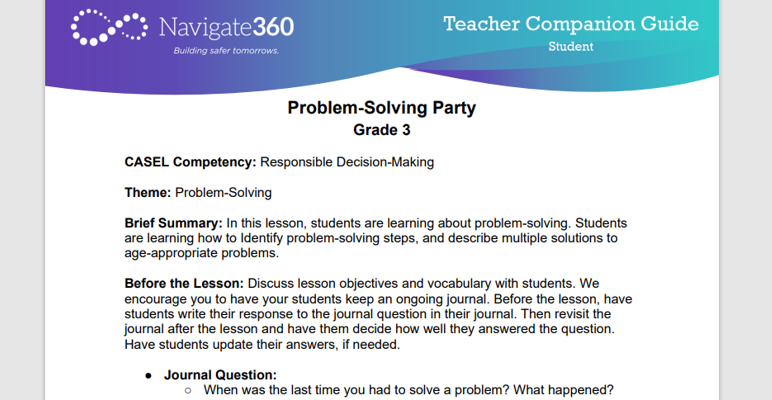
  • The Teacher Companion Guide (TCG) is a powerful tool for deepening the conversation and is easy to use. You access the Teacher Companion Guide (TCG) by clicking on the three dots and the link under the current lesson card.
  • Simply walk through the teacher companion guide to get the most out of your social skill lesson time!  For a more in-depth look at the teacher companion guide, please see this article


✅Checking Reporting

Most teachers can use the "Insights" report on the main admin home page to access the reporting they need. 
 

Please note: You'll want to make sure you utilize the class and lesson title filters on the student usage report to get the right class and lesson.

 
For a closer view of student participation and assignment, we recommend looking at the Gradebook, which can be accessed under the lesson on the current lesson card or from the left-hand menu. 
 
From the report card, you can drill down into an individual student's profile and review answers to questions or see a summary of that student's work!
 

❗Individual Adaptations

There are various ways to utilize the Compass Curriculum. This guide has focused on suggested best practice and what works for most schools/districts. However, your school/district may be different. 
 
If you have specific questions about how your school or district is using Compass Curriculum, please contact your school administration or Compass program administrators who can reach out to Navigate360 for further assistance. 
student suite360 checking class roster student program delivering assigned lessons preview lesson delivery method whole class digital blended tcg teacher companion guide reporting compass compass curriculum compass curriculum student teacher

Related Articles

  • Teacher Companion Guides
  • All Products | Training Webinars | Order Supplies | Contact Us
  • ©2024 Navigate360

Definition by Author

0
0
Expand