Contact Us


Need Help?

System Status | All Products | Training Webinars | Order Supplies | Contact Us
  • All Products
  • PBIS Rewards
  • PBIS Rewards Specific Resources 

How does a Hall Monitor view over time passes?

Discover essential tips for effective hall monitoring, enhancing school safety, and promoting positive student behavior.

Contact Us


Need Help?

  • Emergency Management
    Getting Started Site Setup EMS Webinar Links User Management Features & Functions Analytics & Reporting Troubleshooting Click here for Connect360 & EM Resources (911Cellular) EMS Resources On-Demand Learning
  • Connect360
    Emergency Management & Connect360 Integration E911 & Emergency Calls Connect360 Computer Panic Buttons Notify360: Panic Button Hardware Screen Takeover Notification CampusShield Mobile App Connect360 Enablement Resources
  • PBIS Rewards
    Launching PBISR Webinar Links User Management  PBIS Rewards Feature/Function Overview  Analytics & Reporting   Troubleshooting   Hardware / Consumables On-Demand Learning Integrations   Release Notes & Updates  PBIS Rewards Specific Resources 
  • Hall Pass
  • Preparation & Response Training
    Getting Started NTI Webinar Links User Management Course Management Analytics & Reporting   Troubleshooting PRT Resources  Release Notes & Updates
  • Behavioral Case Manager
    Getting Started Webinar Links User Management  Feature/Function Overview  Analytics & Reporting   Troubleshooting   Release Notes & Updates  Resources / User Guides State Specific Guidance
  • Visitor Management
    Release Notes Blog Posts Getting Started Webinar Links User Management  Feature/Function Overview Analytics & Reporting   Troubleshooting   Hardware / Consumables Resources  Integrations
  • Compass
    Training Workshops Getting Started On-Demand Data & User Management  Compass Curriculum for Students, Staff, & Families Compass Behavior Intervention Compass Mental Health + Prevention Compass for Florida - Character Ed, Resiliency, & Prevention Compass for Texas - Character Ed Analytics & Reporting   Release Notes & Updates  Additional Resources
  • School Check In
    Getting Started  SCI Webinar Links User Management  SCI Feature/Function Overview  Analytics & Reporting   Troubleshooting   Hardware / Consumables SCI Resources 
  • ALICE Training Institute
    User Management  ALICE Feature/Function Overview  ALICE Resources  Troubleshooting  
  • Detect
    Getting Started Detect Webinar Links Integrations   Detect Resources  Troubleshooting Release Notes & Updates 
  • Anonymous Tip Reporting
    Getting Started  P3 Webinar Links User Management  P3 Feature/Function Overview  Analytics & Reporting   Integrations   Release Notes & Updates  P3 Resources 
  • Resources
    Notices Downloads SIS Integration Billing
  • Back-to-School
    Character & Culture Detection & Prevention Preparation & Response
+ More


Over Time Notifications and the Hall Pass Tab
When an school elects to turn on notifications for hall passes that go over the time limit, the admin set who is notified. Either All Staff or Hall Monitors. Note: The staff member that issues the hall pass will always receive a notification for a pass that has gone over the time limit, even if they are not a hall monitor.

The Hall Pass tab will be displayed on the main menu for those staff who receive over time notifications.


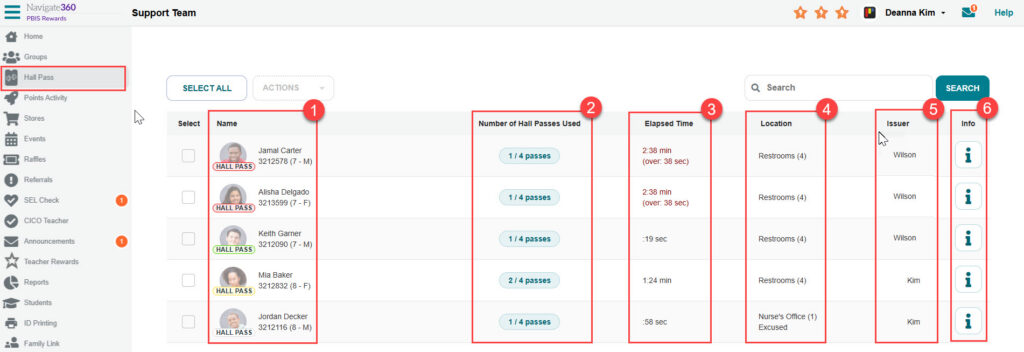
Information included:

1. Name shows the student’s information.
2. Number of Hall Passes Used displays the number of hall passes used versus total passes available.
3. Elapsed Time shows the amount of time the student has been on the pass and overage, if applicable.
4. Location is the stated destination for the student.
5. Issuer is the staff that created the hall pass.
6. Info is a link to the Student Dashboard report. It will be clickable if the signed in user has permission to view the Student Dashboard for this student.
 

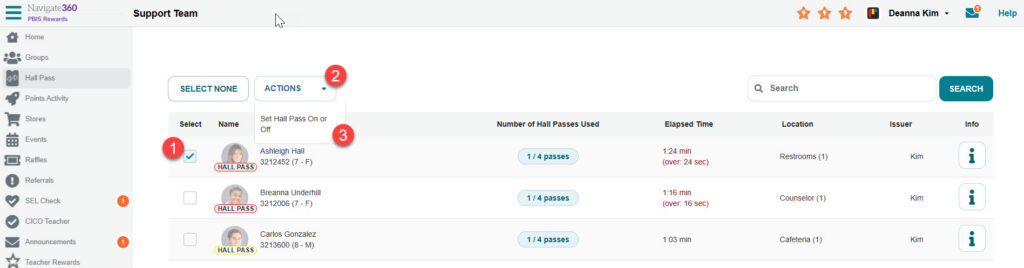
The Hall Monitor will be able to remove students from their hall passes from this list.

  1. Select the multi-select boxes on the left next to the students that need set back to present.
  2. Click the Actions box.
  3. Select “Set Hall Pass On or Off.” This will toggle the hall pass off setting the students back to present.
 

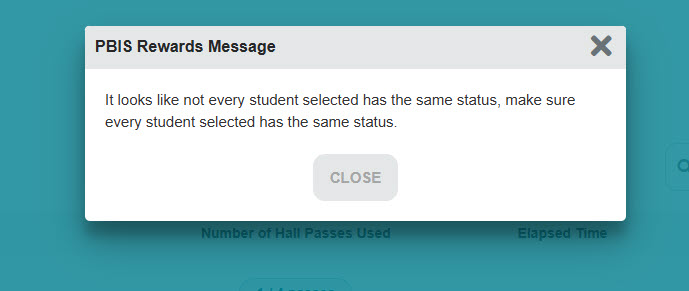
If any of the selected students have had their presence edited by another user simultaneous, this error below will appear. Close the error and then refresh the browser to have the most current hall pass information.
 

hall pass hall monitor monitoring overtime notification

Related Articles

  • Student View- PBIS Rewards
  • Interventions- PBIS Rewards
  • Can I make a group goal in PBIS Rewards?
  • All Products | Training Webinars | Order Supplies | Contact Us
  • ©2024 Navigate360

Definition by Author

0
0
Expand